> ## Documentation Index
> Fetch the complete documentation index at: https://docs.decodahealth.com/llms.txt
> Use this file to discover all available pages before exploring further.
# Super Bills
> Create itemized, claim-ready bills patients can submit to their insurance for reimbursement.
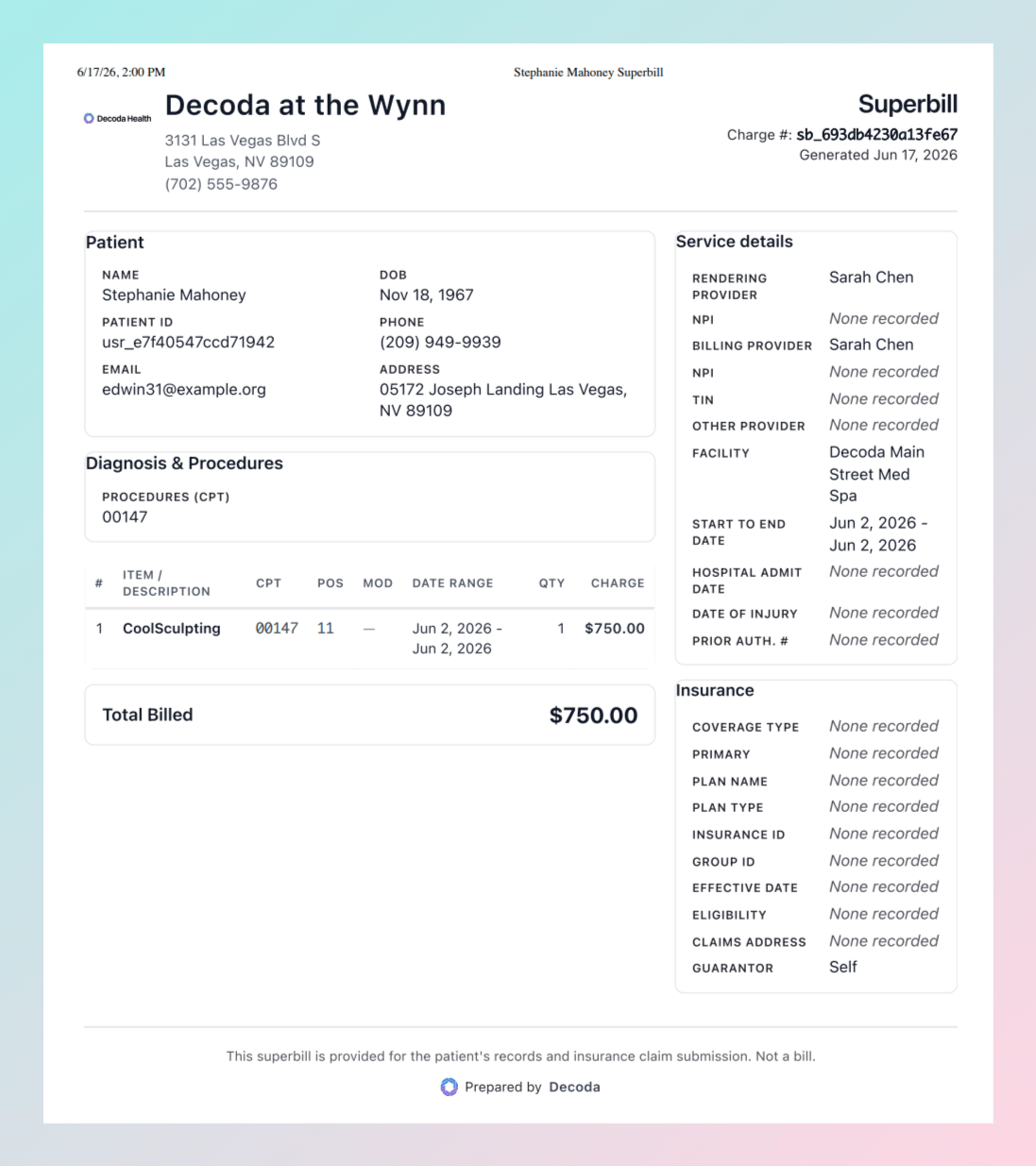
A **Super Bill** is an itemized bill that gathers the charges from a visit, along with billing codes, diagnoses, provider details, and the patient's insurance, into one document the patient can submit to their insurer for out-of-network reimbursement.
 **Prerequisites:** Super Bills fill in faster when you record the patient's [insurance](/modules/patients/patient-chart) on their chart and set [default billing codes](/modules/settings/services) on your services. Both are optional — you can also enter everything by hand.
## Build a Super Bill from a Visit
Open the patient's chart and go to the **Billing** tab. In the **Super Bills** section, click **Construct Super Bill**.
Select the visits and charges you want to bill. Past visits load newest first; click **Load more** to page back through the patient's history. Charges from the visit you started from are pre-selected — add more as needed.
Pick the insurance that applies, or add one without leaving the window. Click **Add insurance** to enter a new coverage, or edit and remove the coverages already on file. You can select more than one — the first becomes the primary payer. With none selected, the bill falls back to **Self-pay**.
Click **Construct**. Decoda creates the Super Bill and opens it in the editor.
## Build a Super Bill from a Note
If the visit already has a clinical note, you can jump straight to a Super Bill without leaving the note.
* In the **AI Scribe** note's actions menu, click **Create Super Bill** to open the editor pre-filled with that visit's charges. If a Super Bill already exists for the visit, the same menu shows **Go to Super Bill** instead, so you don't create a duplicate.
* The same options appear on the actions menu for a saved manual note.
This entry point needs both **Billing Read** (to look up the existing bill and candidate charges) and **Billing Invoices Write** (to create the bill), plus a note that's already linked to an appointment. If a user only has Write without Read, the menu action shows up but the editor fails to open.
## Edit the Super Bill
A **Diagnosis & Procedures** summary at the top of the editor (and on the printed bill) groups the CPT/HCPCS and ICD-10 codes drawn from the linked note and the per-line entries — useful for a quick scan before you send it.
The editor lets you review and complete everything an insurer needs. For each billed item, edit the fields directly on its row:
* **CPT/HCPCS** billing code — type to search the CPT/HCPCS catalog, then pick a result.
* **Modifier(s)** — search and add the standard CMS modifiers; multiple modifiers are stored as separate chips.
* **ICD-10 Diagnoses** — search by code, description, or common lay/workflow terms (e.g. "dexa" surfaces Z13.820, "sore throat" surfaces pharyngitis codes). Add as many as apply.
* **Place of Service** — pick the CMS [place-of-service code](https://www.cms.gov/medicare/coding-billing/place-of-service-codes/code-sets) (e.g. `11 — Office`, `02 — Telehealth`).
* **Rendering Provider**, **Facility**, **Billing Provider**, and **TIN** (the billing provider's Tax Identification Number).
**Rendering Provider** and **Facility** are search-and-pick fields. Picking a provider autofills the **Rendering NPI** from that provider's saved NPI; picking a facility autofills the **TIN** from that [location's](/modules/settings/locations) saved Tax Identification Number. If you need a free-typed name that isn't a provider or a saved location (for example a care-team label), start typing and click the **Use "…"** row that appears at the top of the list.
If a service, product, or medication has default billing codes set in **Settings**, its CPT, modifiers, ICD-10, and place-of-service fields are pre-filled — you only adjust what's different.
The editor also shows the **Primary Payer**, **Plan Name**, **Coverage Type**, and **Claims Address**, pulled from the patient's insurance on file. Add **Notes** for the patient or payer if needed.
## Send or Print
When the Super Bill is ready:
* Click **Print / Save PDF** to print it or save a copy.
* Click **Email** to send it to the patient. The bill goes to the patient's email address on file.
If the patient has no email on file, the send option is disabled. Add an email on the patient chart first.
**Prerequisites:** Super Bills fill in faster when you record the patient's [insurance](/modules/patients/patient-chart) on their chart and set [default billing codes](/modules/settings/services) on your services. Both are optional — you can also enter everything by hand.
## Build a Super Bill from a Visit
Open the patient's chart and go to the **Billing** tab. In the **Super Bills** section, click **Construct Super Bill**.
Select the visits and charges you want to bill. Past visits load newest first; click **Load more** to page back through the patient's history. Charges from the visit you started from are pre-selected — add more as needed.
Pick the insurance that applies, or add one without leaving the window. Click **Add insurance** to enter a new coverage, or edit and remove the coverages already on file. You can select more than one — the first becomes the primary payer. With none selected, the bill falls back to **Self-pay**.
Click **Construct**. Decoda creates the Super Bill and opens it in the editor.
## Build a Super Bill from a Note
If the visit already has a clinical note, you can jump straight to a Super Bill without leaving the note.
* In the **AI Scribe** note's actions menu, click **Create Super Bill** to open the editor pre-filled with that visit's charges. If a Super Bill already exists for the visit, the same menu shows **Go to Super Bill** instead, so you don't create a duplicate.
* The same options appear on the actions menu for a saved manual note.
This entry point needs both **Billing Read** (to look up the existing bill and candidate charges) and **Billing Invoices Write** (to create the bill), plus a note that's already linked to an appointment. If a user only has Write without Read, the menu action shows up but the editor fails to open.
## Edit the Super Bill
A **Diagnosis & Procedures** summary at the top of the editor (and on the printed bill) groups the CPT/HCPCS and ICD-10 codes drawn from the linked note and the per-line entries — useful for a quick scan before you send it.
The editor lets you review and complete everything an insurer needs. For each billed item, edit the fields directly on its row:
* **CPT/HCPCS** billing code — type to search the CPT/HCPCS catalog, then pick a result.
* **Modifier(s)** — search and add the standard CMS modifiers; multiple modifiers are stored as separate chips.
* **ICD-10 Diagnoses** — search by code, description, or common lay/workflow terms (e.g. "dexa" surfaces Z13.820, "sore throat" surfaces pharyngitis codes). Add as many as apply.
* **Place of Service** — pick the CMS [place-of-service code](https://www.cms.gov/medicare/coding-billing/place-of-service-codes/code-sets) (e.g. `11 — Office`, `02 — Telehealth`).
* **Rendering Provider**, **Facility**, **Billing Provider**, and **TIN** (the billing provider's Tax Identification Number).
**Rendering Provider** and **Facility** are search-and-pick fields. Picking a provider autofills the **Rendering NPI** from that provider's saved NPI; picking a facility autofills the **TIN** from that [location's](/modules/settings/locations) saved Tax Identification Number. If you need a free-typed name that isn't a provider or a saved location (for example a care-team label), start typing and click the **Use "…"** row that appears at the top of the list.
If a service, product, or medication has default billing codes set in **Settings**, its CPT, modifiers, ICD-10, and place-of-service fields are pre-filled — you only adjust what's different.
The editor also shows the **Primary Payer**, **Plan Name**, **Coverage Type**, and **Claims Address**, pulled from the patient's insurance on file. Add **Notes** for the patient or payer if needed.
## Send or Print
When the Super Bill is ready:
* Click **Print / Save PDF** to print it or save a copy.
* Click **Email** to send it to the patient. The bill goes to the patient's email address on file.
If the patient has no email on file, the send option is disabled. Add an email on the patient chart first.