> ## Documentation Index
> Fetch the complete documentation index at: https://docs.decodahealth.com/llms.txt
> Use this file to discover all available pages before exploring further.
# Ingenico Lane/3000
> Setup guide for the Ingenico Lane/3000 payment terminal.
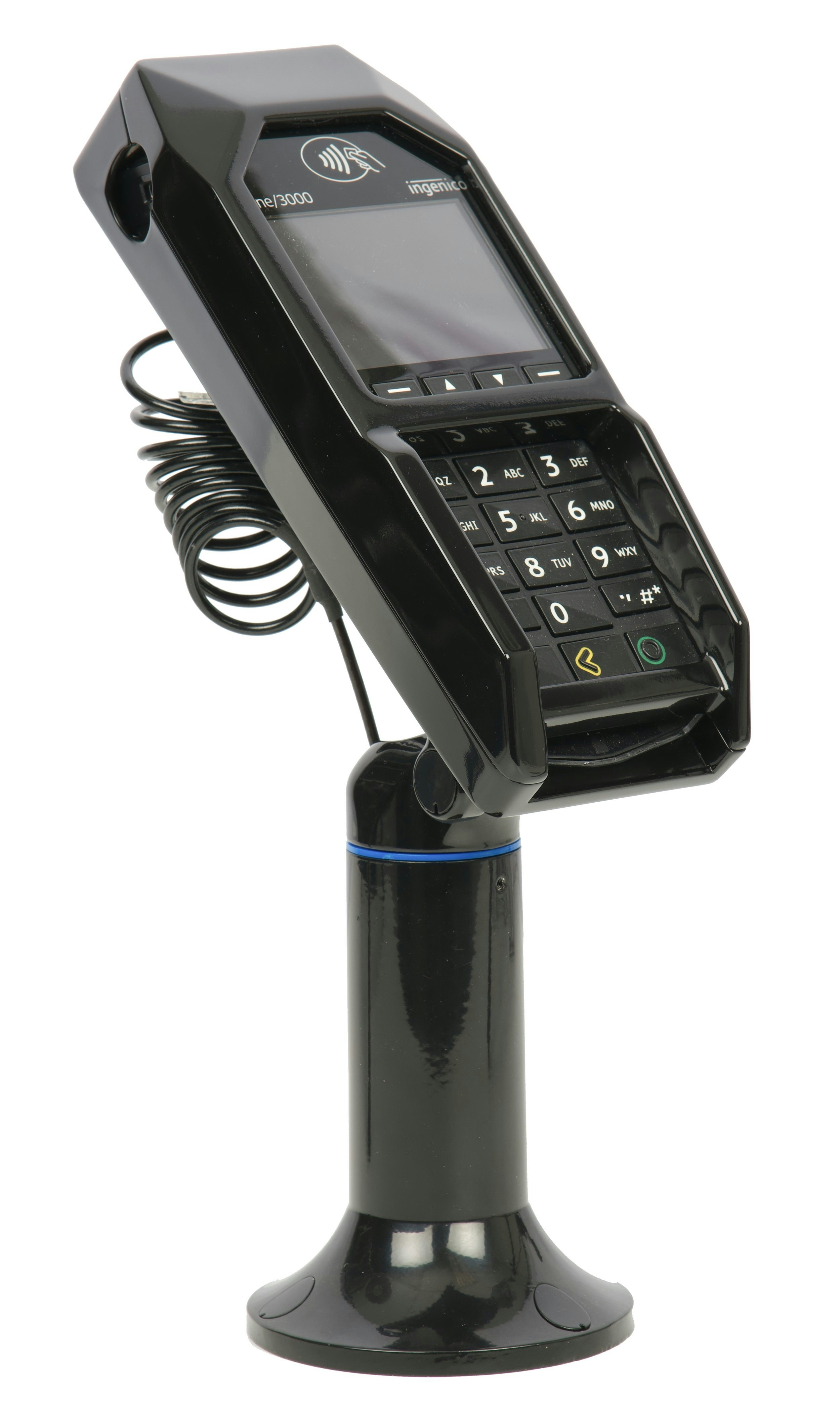 The Lane/3000 does **not** support Wi-Fi. It must be connected via Ethernet.
## What's in the Box
* Ingenico Lane/3000 terminal
* Ingenico Multipoint Interface Cable
* Ingenico power supply
## Initial Setup
* Plug the power supply connector into the jack on the Multipoint Interface Cable.
* Connect the Multipoint Interface Cable into the Multipoint Port on the underside of the terminal.
* Plug the power supply adapter into an available power outlet.
Connect the other end of the Multipoint Interface Cable to an Ethernet port (router, modem, wall jack, etc.).
## Powering On and Registering the Terminal
Once power is supplied, the initialization process begins.
After establishing its IP address, the terminal starts the registration process.
The terminal will display a 6-digit alphanumeric code. Use this code when [registering the device](/modules/settings/payment-management#register-a-new-device) in Decoda.
## Entering Text Using the Multi-Tap Method
Each number key represents a set of letters. Pressing the key multiple times will cycle through the numbers and letters. For example, pressing `2`:
| Presses | Character |
| ------- | --------- |
| 1 | `2` |
| 2 | `a` |
| 3 | `b` |
| 4 | `c` |
| 5 | `A` |
| 6 | `B` |
| 7 | `C` |
## Troubleshooting
### Restart Your Terminal
There are two ways to restart your terminal:
**Soft Reboot:** Access the Admin Menu and select the Restart Terminal option.
**Hard Reboot:** Press and hold the `.`, `#`, `*` key and `<` (yellow key) simultaneously until the device powers off.
### Device Disconnected
If your device becomes disconnected, verify the following:
* Ensure you are using the provided multi-point mono connector (Ethernet) cable and power supply.
* Check that the Ethernet jack on the multi-point mono connector cable is securely plugged into your router, modem, networking switch, or Ethernet wall jack.
* Verify that the Ethernet port being used has access to the Internet and that your internal network allows Integrated Terminal connections.
The Lane/3000 does **not** support Wi-Fi. It must be connected via Ethernet.
## What's in the Box
* Ingenico Lane/3000 terminal
* Ingenico Multipoint Interface Cable
* Ingenico power supply
## Initial Setup
* Plug the power supply connector into the jack on the Multipoint Interface Cable.
* Connect the Multipoint Interface Cable into the Multipoint Port on the underside of the terminal.
* Plug the power supply adapter into an available power outlet.
Connect the other end of the Multipoint Interface Cable to an Ethernet port (router, modem, wall jack, etc.).
## Powering On and Registering the Terminal
Once power is supplied, the initialization process begins.
After establishing its IP address, the terminal starts the registration process.
The terminal will display a 6-digit alphanumeric code. Use this code when [registering the device](/modules/settings/payment-management#register-a-new-device) in Decoda.
## Entering Text Using the Multi-Tap Method
Each number key represents a set of letters. Pressing the key multiple times will cycle through the numbers and letters. For example, pressing `2`:
| Presses | Character |
| ------- | --------- |
| 1 | `2` |
| 2 | `a` |
| 3 | `b` |
| 4 | `c` |
| 5 | `A` |
| 6 | `B` |
| 7 | `C` |
## Troubleshooting
### Restart Your Terminal
There are two ways to restart your terminal:
**Soft Reboot:** Access the Admin Menu and select the Restart Terminal option.
**Hard Reboot:** Press and hold the `.`, `#`, `*` key and `<` (yellow key) simultaneously until the device powers off.
### Device Disconnected
If your device becomes disconnected, verify the following:
* Ensure you are using the provided multi-point mono connector (Ethernet) cable and power supply.
* Check that the Ethernet jack on the multi-point mono connector cable is securely plugged into your router, modem, networking switch, or Ethernet wall jack.
* Verify that the Ethernet port being used has access to the Internet and that your internal network allows Integrated Terminal connections.