> ## Documentation Index
> Fetch the complete documentation index at: https://docs.decodahealth.com/llms.txt
> Use this file to discover all available pages before exploring further.
# Changelog
> Latest updates and improvements to the Decoda Health Platform
### Control Social Inbox Access by Role
In **Settings → Roles → Messaging**, grant **View Social Messages** and **Send Social Messages** separately so staff can read Instagram and Messenger conversations without permission to reply.
### Include Prescriber NPI on Medication Labels
From a dose's **Print Label** window, selecting a prescriber fills their NPI into the label beside the DEA number, reducing missing identifier details on dispensed medication.
### Catch New Social Messages Without Watching Inbox
Turn on **Social Message Received** in **Settings → Notifications** to receive Instagram and Messenger DM alerts in the notification bell and open the exact conversation from the alert; see [Social Inbox](/modules/comms/social#getting-notified).
### Find Any Patient Purchase Faster
On a patient's **Billing** tab, filter **Purchases** by purchase date, category, item type, or price to locate specific items without paging through the full history; see [Patient Chart](/modules/patients/patient-chart#billing-tab).
### Reuse Apple Pay for One-Time Charges
In **Billing → Payment Check-out**, a saved Apple Pay method appears alongside other saved methods for one-time charges and stays out of recurring memberships and payment plans that need a reusable card or bank account; see [Payment Methods](/modules/billing/checkout#payment-methods).
### Show Every Split Payment on One Receipt
Receipts for split transactions show the combined amount, completion date, and each payment method in one view, helping staff and patients reconcile the full purchase; see [Receipts](/modules/billing/charges-and-payments#receipts).
### Refund Exact Items and Quantities
From **Billing → Payments → Refund Payment**, choose **Item refund** to select funded items, quantities, or exact package and card units, preview the total, and return the matching benefits or inventory when needed.
### Stamp Reusable Provider Signatures on Notes
Providers can adopt a signature under **Settings → Profile**, add **Provider signature** to note templates, and have it stamped on signed-off notes and exports; see [Provider Signatures](/modules/notes/provider-signatures).
### Explain Membership Savings Clearly on Receipts
Patient, email, and detailed receipts label savings by source—such as a membership benefit, package discount, or promotion—so patients can see why each item cost less; see [Receipts](/modules/billing/charges-and-payments#receipts).
### Stop Unauthorized Calendar Overbooking Before It Saves
In **Settings → Roles → Scheduling**, turn off **Override Scheduling Constraints** to block staff from saving appointments outside a provider's shift, over a conflict or block, or beyond capacity; see [Scheduling Configuration](/modules/settings/scheduling#control-who-can-overbook-a-provider).
### Reuseable Email Templates
Create shared templates under **Settings → Emails → Templates**, then select or save them while writing patient emails, blasts, and sequence steps; see [Email Templates](/modules/comms/email-templates)
### See Which Marketing Efforts Drive Revenue
On **Growth → Dashboard**, compare funnel performance, collected revenue, campaign spend, bookings, cost per opportunity, ROAS, and first- or last-touch attribution so clinic owners can invest in what converts; see [Growth Dashboard](/modules/growth#dashboard).
### Start Patient Calls From One Shared List
On **Comms → Calls**, click **Make Call**, enter a phone number, and Decoda links the call to the matching patient or creates a contact before dialing, without opening a chart; see [Call History & Recordings](/modules/comms/calls).
### Keep Lab PDFs in the Patient Chart
Junction requisitions and result reports save automatically in the patient's **Forms & Documents** tab under **Requisition** or **Lab**, preserving corrected reports with the rest of the chart; see [Labs](/guides/labs#requisition-and-results-in-forms--documents).
### Triage Inbound Faxes With AI Suggestions
On **Comms → Fax**, review AI suggestions to link an inbound fax to a matching patient, create a note, or create an assigned task only after staff confirm each action; see [AI Suggestions on Inbound Faxes](/modules/comms/fax#ai-suggestions-on-inbound-faxes).
### Track Who Reviewed Every Patient Document
With **Document review & sign-off** turned on under **Settings → General → Documents**, staff can sign off on a lab, consent form, or referral in a patient's chart, leave an internal note, or assign it to a colleague to review — so every document has a clear record of who checked it and when. See [Document Review & Sharing](/modules/patients/document-review-and-sharing).
### Triage Every Clinic Email From One Inbox
A dedicated **Email** mailbox in **Comms** gathers all patient and contact emails into one shared inbox with folders, filters, and drafts, so whoever handles email can triage and reply to them all in one place. See [Email Mailbox](/modules/comms/email).
### Lab Results Land in Measurement Trends Automatically
Incoming lab values now flow straight into a patient's measurement tables with a **Lab result** badge, and numeric results (like A1C or cholesterol) also plot on trend charts alongside weight, vitals, and other tracked measurements — all without anyone retyping a single number.
### Share Progress Photos to the Patient Portal
Pick any photo from a patient's gallery and share it to their portal with an optional label, so patients can see their own before-and-after or progress photos without you emailing or texting image files. See [Photos](/modules/patient-portal/photos).
### Bring Social and Family History Into the Patient Sidebar
For clinics that collect Social History or Family History as a patient field, a matching **Show Social History in Sidebar** or **Show Family History in Sidebar** toggle appears under **Settings → General** — turn it on and that information shows in a collapsible section of the patient sidebar, giving providers an at-a-glance view of it during a visit.
### Website Visitors Can Chat Without Signing Up
Ask your Decoda representative to turn on anonymous web chat, and any visitor to your website can start chatting with your practice's assistant right away, no account required, so questions get answered before they have any reason to leave. See [Web Chat Widget](/modules/settings/assistants#web-chat-widget).
### Know the Moment a Quote Gets Accepted
The instant a patient accepts a quote, your billing team gets notified so they can turn it into a charge before the moment passes. See [When a Patient Accepts a Quote](/modules/billing/carts-and-quotes#when-a-patient-accepts-a-quote).
### Target Campaigns by When Patients Booked
A new Appointments filter builds a cohort around when a patient's appointment was booked rather than when it happens, so you can target a campaign at everyone who booked during a specific promotion or window. See [Cohorts](/modules/comms/cohorts).
### E-Prescriptions Always Carry Current Patient Details
Every time you open e-prescribing from a patient's chart, Decoda sends DoseSpot that patient's current name, address, phone, and vitals, so a prescription always reflects their latest information. See [Launch E-Prescribing](/guides/e-prescribing#from-a-patient-chart-most-common).
### Schedule a Text to Send at the Perfect Moment
From any patient's chat, write a message whenever it's convenient and pick exactly when it should go out, so reminders and follow-ups land in a patient's inbox exactly when they'll matter most. See [Schedule a Text for Later](/modules/comms/chat#schedule-a-text-for-later).
### Collect Tips on Complimentary Services Too
When a visit is fully comped or discounted to zero, staff can still add a tip on the pay step, so a generous patient can reward great care even when there's nothing left to charge.
### Capture a Photo Right From the Scribe Upload Screen
When attaching a document to an AI Scribe note, staff can snap a photo or pull from a connected scanner in the same step, turning a paper record into part of the note without leaving the upload screen.
### See Exactly Who Signed Off Each Dose
The provider's name and sign-off date show right on the medication row in notes and the Scribe dose table, giving staff and auditors a clear compliance trail at a glance.
### Let a Cancelled Member Keep Benefits Until They Expire
A checkbox on the cancellation screen lets staff preserve a patient's unused membership benefits through their natural expiration date, so a patient who already paid for a perk still gets to use it. See [Member Actions](/modules/settings/memberships#member-actions).
### Bill Memberships on 6, 10, or 12-Week Cycles
Set a membership template's billing cadence to 6, 10, or 12 weeks, so charges land in step with an injectable or laser series billed on that same schedule. See [Create a Membership](/modules/settings/memberships#create-a-membership).
### Share a Booking Link for One Specific Provider
From **Settings → Users**, copy a self-scheduling link tied to one provider, and patients who click it land straight in that provider's own availability and services. See [Share Your Booking Page](/modules/scheduling/self-scheduling#share-your-booking-page).
### Bring Your Google Ads Campaigns Into Decoda
Connect a Google Ads account from **Growth → Integrations** and pull every existing campaign in as a draft, so you can review and launch your ad campaigns without rebuilding them from scratch.
### Choose Which Google Calendar Gets Your Appointments
In **Settings → General**, pick the specific Google Calendar Decoda should write outbound appointments to, so every booking lands exactly on the calendar your team is watching. See [Connecting Google Calendar](/modules/settings/general#advanced-configuration).
### Disconnect Every Google Calendar Account at Once
Admins can disconnect every provider's Google Calendar connection from **Settings → General** in a single action, making it fast to reset calendar sync clinic-wide during offboarding or troubleshooting. See [Connecting Google Calendar](/modules/settings/general#advanced-configuration).
### Set Where Patient Email Replies Actually Land
In **Settings → Emails → Domain**, set a reply-to address for your sending domain so when a patient replies to an appointment reminder or receipt, it goes straight to an inbox your team monitors. See [Reply-to Address](/modules/settings/emails#reply-to-address).
### See the Revenue and Bookings Behind Every Blast
The Blast Analytics dashboard shows revenue, ROI, and appointments booked for each SMS and email campaign, so you can tell which blasts are actually worth sending again.
### Teach Call Transcripts Your Clinic's Vocabulary
On each phone number's settings page, add the medication names, staff names, and local terms your clinic uses most, so AI call transcripts get those clinic-specific words right every time. See [Recognized Terms](/modules/settings/phone-numbers#recognized-terms).
### Search for Any Permission While Building a Role
When editing a role in **Settings → Roles & Permissions**, search by name to jump straight to the exact permission you need.
### Grant Dose Logging Without Edit or Delete Rights
Roles & Permissions separates dose actions into Create, Edit, and Delete, so you can give front-desk or clinical staff the ability to log new doses without also giving them the power to change or remove existing records.
### See Every Patient Review in One Place
A new **Reviews** page lists every star rating and comment your patients leave after their visit, with an average score and a breakdown by rating, so you can see how your practice is doing and follow up with anyone who wasn't satisfied. See [Reviews](/modules/reviews).
### Patients Pick Their Pharmacy During Intake
A Preferred Pharmacy question on intake forms lets patients search for and select their own pharmacy, which appears in a new Pharmacies section on the patient's Overview tab with a one-click Sync to DoseSpot — giving staff the right pharmacy on file before a prescription goes out, no phone tag required.
### Control Whether Patients See Service Length
A new **Show Service Duration** toggle in Settings > Self-Scheduling > General controls whether appointment length appears throughout the online booking flow, so clinics that don't want patients comparing services by time can hide it clinic-wide. See [Configure Self-Scheduling](/modules/settings/scheduling#configure-self-scheduling).
### Send Patient Emails Under Your Own Name
Choose whether patient emails show the sending provider's name or your clinic's name, and set the address they come from — like `frontdesk@yourclinic.com` — from Settings > Emails > Sender, with room to adjust either one for a single message right in the composer. See [Edit the Sender](/modules/settings/emails#edit-the-sender).
### Send Photos in Automated Text Sequences
Outreach sequence SMS steps can now include up to three images, sent as MMS, with thumbnail previews in the step editor, so a re-engagement or follow-up sequence can carry a before-and-after photo or a promotional graphic straight to a patient's phone.
### Get a Task the Moment a Membership Lapses
When a member's payment fails and their membership goes delinquent, Decoda automatically creates a staff task and alert linking straight to the failed charge, so a team member can follow up and protect that recurring revenue before it lapses for good.
### Reconcile a Day's Sales in One Dashboard
The new Daily Sales & Collections dashboard rolls up a single day's sales, collections, discounts, and payment methods by location, and the companion Sales Line Items view drills into every invoice behind that total, giving finance and front-desk staff everything needed to close out the day's numbers in one place.
### Bring Your Existing Number With You
During phone setup, clinics can request to keep the number their patients already call and text, instead of switching to a new one — so nothing about how patients reach you has to change.
### Set a Fixed Answering Order for Ring Groups
Choose the **Defined Order** ring strategy on a ring group so calls always start with the same person and escalate down a set priority list — like front desk, then manager — until someone answers. See [Ring Strategy](/modules/phone-numbers/ring-groups#ring-strategy).
### Round-Robin Rings Every Device on the Line
When it's a team member's turn in a round-robin ring group, every device tied to their line, desk phone and mobile alike, rings together, so the call reaches a person instead of dropping straight to voicemail.
### Superbills Autofill Provider and Facility Billing IDs
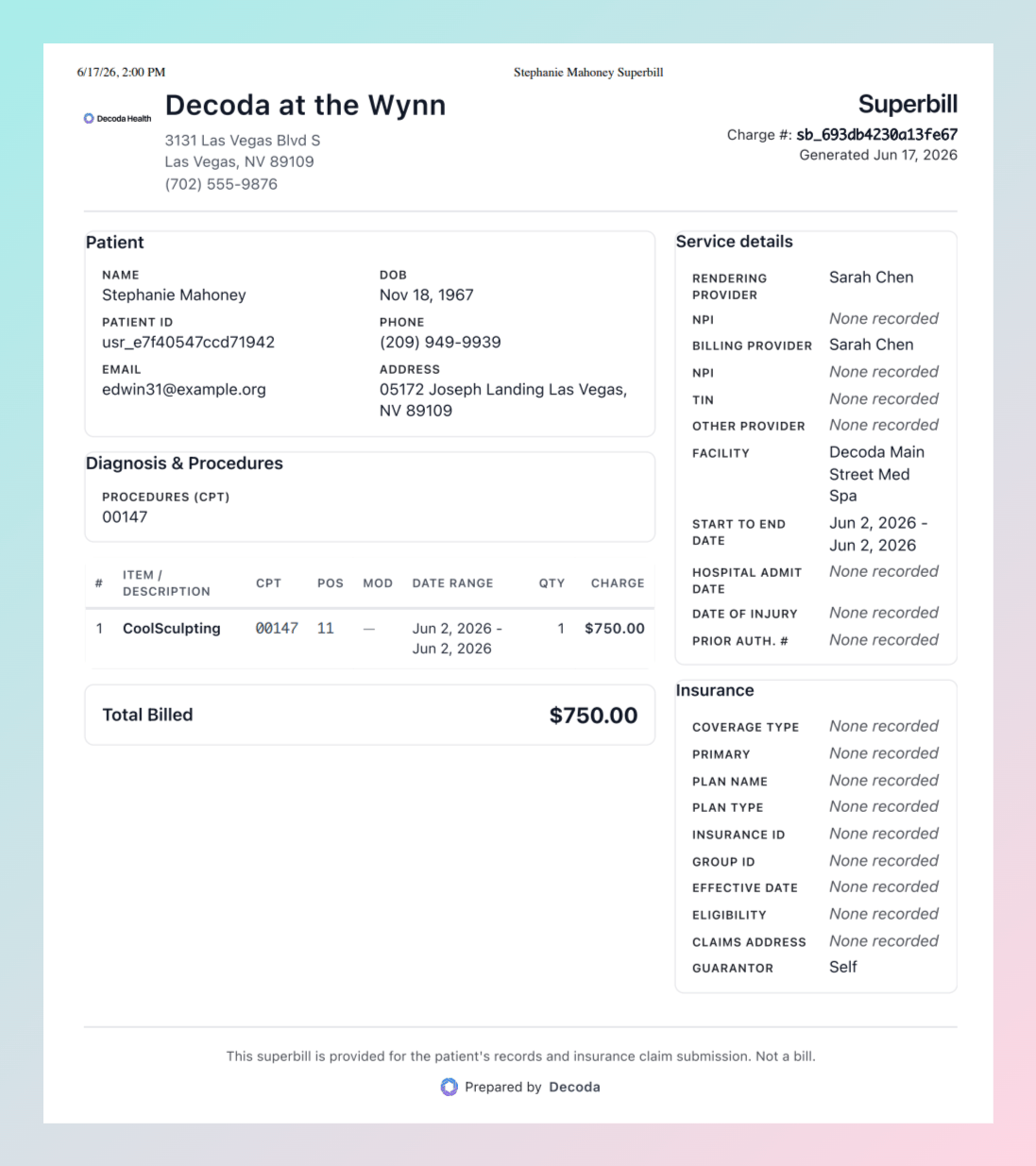
Pick a rendering provider or facility from a searchable list on a superbill and their NPI and Tax ID fill in automatically from your records, cutting out the retyping that leads to rejected insurance claims.
### Cash Discount Pricing Covers Custom-Amount Charges
For clinics running a cash discount program, a custom amount typed in at checkout gets the same card-fee-based discount as your catalog items, so pricing stays consistent no matter how the charge was entered.
### Void a Gift Card Before It's Redeemed
Staff can void a card that was issued by mistake or flagged for fraud — its balance is removed right away, and the reason you enter stays on the card's record for later reference. See [Void a Card](/modules/settings/gift-cards#void-a-card).
### Spot a Discontinued Prescription at a Glance
Every medication row in the Scribe weight-loss dose table shows an amber **Inactive** or red **Deleted** badge straight from DoseSpot, so staff can tell a script has been discontinued or cancelled without checking the pharmacy system directly.
### See Which Treatments a Good Faith Exam Deferred
When a Spakinect Good Faith Exam approves some treatments but defers others, the patient's Appointments tab and an automatic alert both flag exactly which ones were deferred, so staff don't move forward with something the exam didn't clear. See [Tracking GFE Status](/guides/spakinect-good-faith-exams#tracking-gfe-status).
### AI Patient Summaries Reference Uploaded Documents
The AI Summary on a patient's Overview tab lists the name, type, and upload date of every document on file, giving staff a fuller starting point before they dig into a consent form or lab result. See [Overview Tab](/modules/patients/patient-chart#overview-tab).
### Clock Someone Out Straight From Their History Row
On the Clock-in History table, select **Clock Out** on any open, same-day entry and confirm once to fix a forgotten clock-out, without opening the full Edit Entry form. See [Clock Out a Provider](/modules/check-in/clock-in#clock-out-a-provider).
### Route and File Inbound Faxes to a Patient's Chart
Open any inbound fax in **Comms → Fax**, click the actions menu, and link it to a patient — Decoda files a copy to their record under the document type you choose, and you can create an assigned follow-up task in the same step so the fax gets the attention it needs. See [Fax](/modules/comms/fax).
### Clinical Notes Are Saved Automatically While You Work
Every answer, code, and annotation you enter in a clinical note is preserved locally as you type, so returning to a note picks up exactly where you left off — whether you come back seconds or hours later.
### Annotate Treatment Images in Full Screen
Click the expand icon on any photo attached to a Scribe or manual note to open it in a dedicated full-screen annotation page, giving you a larger canvas to place and adjust marks with precision.
### Refine AI-Generated Landing Pages With a Chat Assistant
After Decoda builds a landing page, open the report in **Growth → Agents**, click **Edit with AI**, and describe your changes in plain language — the preview updates immediately and saves automatically. See [Edit a Generated Landing Page with AI](/modules/growth#edit-a-generated-landing-page-with-ai).
### Void Issued Gift Cards and Preserve the Record
A **Void** action is available in the issued gift card drawer and on any card's three-dot actions menu in **Settings → Gift Cards** — enter a reason, and Decoda removes the remaining balance and marks the card Voided in the transaction history so the record stays intact. See [Void a card](/modules/settings/gift-cards#void-a-card).
### Route Membership Renewals by Location or Per Member
Membership templates now support a **Deposit to** setting that routes each renewal charge to the payment account for the location where the patient enrolled — or you can set an individual override on any member's profile — so multi-location practices collect into the right payment account without tracking it manually.
### Delegate Care Pathway Template Management to Non-Admin Staff
A new **Manage Care Pathways** role permission lets admins give any role the ability to create and edit care pathway templates in **Settings** without granting full admin access.
### See When Rooms and Equipment Are Already Reserved
While creating or editing an appointment that uses a room or piece of equipment, the calendar preview now shows the times that resource is already taken — by other appointments or by blocks — so you can pick a conflict-free slot without checking a separate view.
### Full Control Over What Goes on a Printed or Shared Note
Note templates now support a signature field where the provider draws their signature directly in the note, fixed disclaimer or consent text that displays without being filled in, and per-field patient-visibility toggles — so every printed copy and patient portal view shows exactly what it should. See [Note Templates](/modules/settings/note-templates#patient-view).
### Assign Note Sign-Off as a Tracked Task
From the actions menu of any AI Scribe or manual note, staff can request that a colleague review and sign off the note — it lands as an assigned task with a direct link to the note, so the request stays visible until completed.
### Organize Your Catalog Into Sub-Categories
Categories can now be nested beneath a parent, with the settings page showing a collapsible tree — the same hierarchy carries through to analytics breakdowns, commission rules, checkout filters, and stock views.
### Set a Time Limit on Packages at Purchase or First Use
Packages can carry an expiration measured in days that starts either when the patient buys the package or the first time they redeem it, so credits expire on the schedule the clinic intends. See [Packages](/modules/settings/packages).
### Automatic Reminder When Staff Forget to Clock Out
When a provider's shift has ended or they've been clocked in for more than 12 hours, they automatically receive a text and email with how long they've been clocked in, keeping time records accurate without a manager having to follow up.
### Limit a Scheduling Block to Specific Locations
When creating or editing a block, choose which locations it applies to — a provider blocked at one location stays bookable at your others, and room or equipment blocks only reduce capacity where you specify. See [Limit a block to certain locations](/modules/scheduling/blocks-and-shifts#limit-a-block-to-certain-locations).
### Look Up Gift Cards by Code in the Search Bar
Typing a gift card code into the command palette (⌘K) returns a matching result instantly, so front desk staff can find and open any gift card in seconds when a patient presents one.
### Multi-Service Appointments Show a Unified Checklist
When a single appointment covers more than one service, checklist steps shared across those services merge into one item rather than repeating, giving staff a clean list to work through.
### See Staff Pay From Any Team Member's Perspective
Admins on the **Staff Pay** page can use a **View as** dropdown to preview the page exactly as a specific team member sees it — the same data, the same scope — making it easy to answer pay questions without sharing screens.
### Trace a Banked Item to the Invoice That Created It
Banked items in a patient's billing tab now show which invoice originally generated them, with a link to open it, so billing staff can follow the chain from a discount back to its source charge.
### Set a Patient's Profile Photo From Their Gallery
Any image already in a patient's documents tab or Scribe attachments can be promoted to their profile photo with a single click, without uploading a new file.
### Appointment Notes Visible Before You Click
Hovering over an appointment on the calendar now shows its notes — including the author and timestamp for each note — so staff can catch context without opening the appointment.
### Save Your Provider Column Order on the Calendar
Drag providers into your preferred order under **Settings → Calendar Appearance → Provider Order**, and the calendar remembers that arrangement on every device you log in from. See [Set Your Provider Order](/modules/settings/calendar-appearance#set-your-provider-order).
### Know Which Measurements Came From the Patient
Values that patients submit through the portal now carry a **Patient reported** label in the measurements panel and on trend charts, so clinical staff can instantly tell provider-recorded readings apart from self-reported ones.
### Expand to See Every Same-Day Measurement Reading
In the measurements table, dates that have more than one reading now show an expand arrow — clicking it lists each entry with its exact recording time, so no reading disappears behind a summary.
### Require a Specific Measurement for Each Service
Measurement checklist items on a service can now be targeted to a particular field or group, so the front desk can confirm that exactly the right reading was recorded before the checklist step counts as complete.
### Every Discount Shows Its Source
Each discount line on the charge page now carries a labeled badge — Package, Membership, Promo, Banked, or Manual — so managers can see at a glance where every price reduction came from.
### Manage Charges Directly From the Patient Profile
The charge actions menu — write off, refund, add comment, and more — is now available on each charge in the patient's billing tab, so staff can handle billing adjustments without navigating to the full charges list.
### Control Who Can See Inventory Costs
A new **View Stock Cost** role permission controls visibility of unit prices, stock values, and supplier costs across inventory screens, so managers can share inventory access without sharing financial details.
### Mark Prep Time as Provider-Only Setup
Services can now designate their prep segment as provider-only — the patient's appointment begins at the first treatment segment while the prep block still reserves the provider's schedule, so prep time reflects actual setup rather than patient wait.
### Patients Can Rebook in the Same Text Conversation They Cancelled In
After the AI text assistant cancels an appointment, it immediately offers to help find a replacement time and walks the patient through choosing a new slot — keeping the patient on your schedule in one uninterrupted conversation.
### Appointment Duration in the Analytics Dashboard
The Appointment Dashboard now includes a duration column showing each appointment's booked length, so you can compare scheduled time across providers or services.
### Refund to Patient Credit or the Remaining Package Value
The refund window now lets you send a refund back to the original payment method **or** issue a fresh patient credit. When the payment funded a package the patient hasn't fully used, a **Remaining package value** option appears with the unused dollar amount in parentheses — pick it to cancel the package and refund only what hasn't been redeemed. See [Process a Refund](/modules/billing/charges-and-payments#process-a-refund) for the full flow.
### Build a Super Bill Straight From a Clinical Note
The actions menu on AI Scribe and manual notes now includes **Create Super Bill** (or **Go to Super Bill** when one already exists for the visit), so providers no longer need to open the billing tab to start one. The editor adds inline searchable pickers for CPT/HCPCS codes, modifiers, ICD-10 diagnoses, and CMS place-of-service codes — pre-filled from each item's defaults. See [Build a Super Bill from a Note](/modules/billing/superbills#build-a-super-bill-from-a-note).
 ### Drag Appointments to Reschedule, Including on iPad
Pick up any appointment in **Day** or **Week** view and drop it on a new time — Decoda asks once whether to text the patient. The interaction works on iPad with a press-and-hold, and in Day view you can drop into a different provider's column to switch providers in the same move. See [Drag to a new time](/modules/scheduling/appointments#drag-to-a-new-time).
### Require Intake Forms Before Patients Can Check Themselves In
If an appointment's service has required forms, the kiosk and patient portal block self check-in until the patient submits every form, with a clear **Complete your forms to enable check-in** prompt. Staff can still mark the patient checked in from the calendar or sidebar; the Daily Dashboard surfaces a **Send Form** action so the front desk can push the forms out first. See [Forms Must Be Done First](/modules/check-in/patient-self-check-in#forms-must-be-done-first).
### Charge a Patient's Existing Gift Cards at Checkout
When a patient has gift cards they bought or received, each one appears as a selectable row on the **Gift Card** payment method — no code typing needed. Outside cards can still be redeemed by entering the code manually. See [Redeem a Gift Card](/modules/settings/gift-cards#redeem-a-gift-card).
### Charge No-Show Fees on Missed Appointments
Set a fixed or percentage **No-show Fee** in service settings. When staff mark an appointment as a no-show, Decoda asks whether to charge it. See [Pricing & Payments](/modules/settings/services#pricing--payments) on the services page.
### Filter Billing Dashboards by Promotion
The **Promotion** filter joins Product Sales Breakdown, Payment Breakdown, and Provider Earnings — pick a promotion to see only the charges, payments, or earnings tied to it. See [Revenue Dashboards](/modules/analytics/revenue) and [Provider Earnings](/modules/analytics/providers#provider-earnings-report).
### Apply Manual Promotions With One Click
The checkout **Promotions** dialog now treats every eligible row — including code-gated promos the cart already qualifies for — as a click target. Hit the row to apply; the **Enter promo code** field is still there as a fallback. See [How Promotions Appear at Checkout](/modules/settings/promotions#how-promotions-appear-at-checkout).
### Edit Phone-Number Schedules Right on the Weekly Timeline
The phone number detail page lets you paint, drag, resize, and delete a handler's hours directly on the weekly grid instead of through a separate schedule form. See [Edit Hours Directly on the Timeline](/modules/phone-numbers/call-routing#edit-hours-directly-on-the-timeline).
### Skip the GFE Request When the Patient Already Has a Recent One
When a new appointment is booked for a patient who already has a Good Faith Exam covering the treatments and it's still within its one-year validity window (and isn't archived), the **Request GFE** checklist item is ticked automatically. The auto-skip looks at recency, not approval status, so staff should still glance at the GFE's status badge before treatment. The step is also reordered before **Checked In** so the front desk can confirm coverage as soon as the patient walks in. See [Spakinect Good Faith Exams](/guides/spakinect-good-faith-exams#tracking-gfe-status).
### Browse Patient Documents as a Thumbnail Grid
A **List** / **Grid** view toggle on the patient's documents tab switches between the existing list and a thumbnail grid — useful when most uploads are images. See [Forms & Documents Tab](/modules/patients/patient-chart#forms--documents-tab).
### Hide Shift Capacity Behind a Toggle
When you create a shift, the **Capacity** field stays hidden until you turn on **This shift can do more than 1 appointment at a time** — so single-provider shifts no longer surface a setting that doesn't apply. Existing shifts that already have a capacity above 1 open with the switch on. See [Add a Shift](/modules/scheduling/blocks-and-shifts#add-a-shift).
### Show Shifts on the Calendar From the Event Types Filter
The **Event Types** sidebar filter now includes **Shifts** alongside Appointments and Blocks, so you can overlay shift events on the day or week grid. Shifts stay off by default; the Schedule view continues to hide them. See [Filter the Calendar](/modules/scheduling/calendar#filter-the-calendar).
### Auto-Complete the Note Taken Checklist When a Note Is Signed
When a provider signs the first clinical note for an appointment, the **Note Taken** checklist item ticks itself. A manual tick by another staff member still wins if it happens first. See [Appointment Checklists](/modules/scheduling/calendar#appointment-checklists).
### Track Provider-Requested Appointments
The appointment form has a new **The patient specifically requested this provider** toggle, surfaced on the calendar with the **Provider Requested** icon and tracked in analytics so you can see how often patients ask for someone by name. See [Book an Appointment](/modules/scheduling/appointments#book-an-appointment).
### Paginate Through the Schedule With Load More Events
The Schedule view now anchors on the selected day and adds the next day each time you click **Load more events** at the bottom — handy for printing a multi-day roster without switching to Week view. See [Calendar Views](/modules/scheduling/calendar#calendar-views).
### Keep Earned Membership Benefits After Cancellation or Expiry
Membership discounts and credits are now gated by their own expiry and quantity rules — not membership status. Patients whose membership ends as **Cancelled**, **Expired**, **Delinquent**, or **Inactive** can still redeem anything they earned until those benefits hit their own expiry. **Frozen** memberships still pause benefits while billing is paused. See [When membership benefits stop being redeemable](/modules/settings/memberships#when-membership-benefits-stop-being-redeemable).
### Jump From Global Search to a Filtered Catalog Page
Picking a catalog item from **⌘K** search now opens the settings list pre-filtered to that one row, so you can see the highlighted item with one click to open it — or clear the filter to show everything. See [Catalog Items](/search#5-catalog-items).
### Move Questions Between Sections With the AI Template Assistant
The note-template AI assistant can now move existing questions into different sections from a plain-language request like "move the weight field into the Vitals section." See [Use the AI Assistant to Build Templates](/modules/settings/note-templates#use-the-ai-assistant-to-build-templates).
### Edit and Erase Individual Annotations in Scribe
An eraser tool and per-mark editing let you target specific marks in the Scribe image annotator and remove or reposition them with precision.
### Take Bulk Action on Membership Rosters
On a membership's detail page, select multiple members and apply a freeze, billing-date update, deactivation, or billing rerun to all of them in a single operation.
### Code-Required Promotions Apply at Checkout in One Click
Promotions that require a code and qualify for the current cart appear in the checkout promotions panel with a "Use" button for staff to apply in one click.
### Set Billing Codes on Products and Medications
A Billing Codes tab in the product and medication settings drawers lets you save default CPT codes, ICD-10 codes, and modifiers that pre-populate on superbills when those items are charged.
### Targeted Notifications for Each Checklist Step
Notification settings include an independent toggle for each appointment checklist step — check-in, forms, measurements, dose, payment, and more — so each team member subscribes only to the alerts that fit their role.
### Book a Service Multiple Times in One Appointment
An "Allow Multiple Bookings" toggle in service settings lets patients add the same service more than once to a single appointment, for workflows like multiple treatment areas booked together.
### Full Gift Card History on the Patient Profile
Staff can view a patient's complete gift card history — each card's status, balance, and details — directly from the billing tab, without navigating away from the patient profile.
### Accept HSA/FSA Cards at Cash Prices
At checkout, staff can apply cash pricing to a card payment, so HSA and FSA card transactions are charged at the cash rate for clinics with dual pricing enabled.
### Build Promotions That Exclude Specific Items or Locations
An "is not" operator in the promotion rule editor lets you create discounts that apply everywhere except where you specify — for example, 20% off all services except Botox, or a promotion valid at every location except one.
### Give Providers Visibility Into Their Own Pay
A "View Own Commissions" role permission lets individual providers see their own commission and tip breakdown — so you can grant that transparency without exposing the entire team's payroll data to everyone who holds the role.
### Filter Tasks by Patient Care or Clinic Operations
A "Task type" filter on the task board separates patient-specific tasks from operational ones, making it easy to focus on one category at a time.
### Catch Cancellation Fee Misconfigurations in Bulk Editing
Bulk service editing includes the cancellation fee time window, and a warning highlights any service where a fee amount is set but the window is zero — meaning the fee would never charge.
### Drag Appointments to Reschedule, Including on iPad
Pick up any appointment in **Day** or **Week** view and drop it on a new time — Decoda asks once whether to text the patient. The interaction works on iPad with a press-and-hold, and in Day view you can drop into a different provider's column to switch providers in the same move. See [Drag to a new time](/modules/scheduling/appointments#drag-to-a-new-time).
### Require Intake Forms Before Patients Can Check Themselves In
If an appointment's service has required forms, the kiosk and patient portal block self check-in until the patient submits every form, with a clear **Complete your forms to enable check-in** prompt. Staff can still mark the patient checked in from the calendar or sidebar; the Daily Dashboard surfaces a **Send Form** action so the front desk can push the forms out first. See [Forms Must Be Done First](/modules/check-in/patient-self-check-in#forms-must-be-done-first).
### Charge a Patient's Existing Gift Cards at Checkout
When a patient has gift cards they bought or received, each one appears as a selectable row on the **Gift Card** payment method — no code typing needed. Outside cards can still be redeemed by entering the code manually. See [Redeem a Gift Card](/modules/settings/gift-cards#redeem-a-gift-card).
### Charge No-Show Fees on Missed Appointments
Set a fixed or percentage **No-show Fee** in service settings. When staff mark an appointment as a no-show, Decoda asks whether to charge it. See [Pricing & Payments](/modules/settings/services#pricing--payments) on the services page.
### Filter Billing Dashboards by Promotion
The **Promotion** filter joins Product Sales Breakdown, Payment Breakdown, and Provider Earnings — pick a promotion to see only the charges, payments, or earnings tied to it. See [Revenue Dashboards](/modules/analytics/revenue) and [Provider Earnings](/modules/analytics/providers#provider-earnings-report).
### Apply Manual Promotions With One Click
The checkout **Promotions** dialog now treats every eligible row — including code-gated promos the cart already qualifies for — as a click target. Hit the row to apply; the **Enter promo code** field is still there as a fallback. See [How Promotions Appear at Checkout](/modules/settings/promotions#how-promotions-appear-at-checkout).
### Edit Phone-Number Schedules Right on the Weekly Timeline
The phone number detail page lets you paint, drag, resize, and delete a handler's hours directly on the weekly grid instead of through a separate schedule form. See [Edit Hours Directly on the Timeline](/modules/phone-numbers/call-routing#edit-hours-directly-on-the-timeline).
### Skip the GFE Request When the Patient Already Has a Recent One
When a new appointment is booked for a patient who already has a Good Faith Exam covering the treatments and it's still within its one-year validity window (and isn't archived), the **Request GFE** checklist item is ticked automatically. The auto-skip looks at recency, not approval status, so staff should still glance at the GFE's status badge before treatment. The step is also reordered before **Checked In** so the front desk can confirm coverage as soon as the patient walks in. See [Spakinect Good Faith Exams](/guides/spakinect-good-faith-exams#tracking-gfe-status).
### Browse Patient Documents as a Thumbnail Grid
A **List** / **Grid** view toggle on the patient's documents tab switches between the existing list and a thumbnail grid — useful when most uploads are images. See [Forms & Documents Tab](/modules/patients/patient-chart#forms--documents-tab).
### Hide Shift Capacity Behind a Toggle
When you create a shift, the **Capacity** field stays hidden until you turn on **This shift can do more than 1 appointment at a time** — so single-provider shifts no longer surface a setting that doesn't apply. Existing shifts that already have a capacity above 1 open with the switch on. See [Add a Shift](/modules/scheduling/blocks-and-shifts#add-a-shift).
### Show Shifts on the Calendar From the Event Types Filter
The **Event Types** sidebar filter now includes **Shifts** alongside Appointments and Blocks, so you can overlay shift events on the day or week grid. Shifts stay off by default; the Schedule view continues to hide them. See [Filter the Calendar](/modules/scheduling/calendar#filter-the-calendar).
### Auto-Complete the Note Taken Checklist When a Note Is Signed
When a provider signs the first clinical note for an appointment, the **Note Taken** checklist item ticks itself. A manual tick by another staff member still wins if it happens first. See [Appointment Checklists](/modules/scheduling/calendar#appointment-checklists).
### Track Provider-Requested Appointments
The appointment form has a new **The patient specifically requested this provider** toggle, surfaced on the calendar with the **Provider Requested** icon and tracked in analytics so you can see how often patients ask for someone by name. See [Book an Appointment](/modules/scheduling/appointments#book-an-appointment).
### Paginate Through the Schedule With Load More Events
The Schedule view now anchors on the selected day and adds the next day each time you click **Load more events** at the bottom — handy for printing a multi-day roster without switching to Week view. See [Calendar Views](/modules/scheduling/calendar#calendar-views).
### Keep Earned Membership Benefits After Cancellation or Expiry
Membership discounts and credits are now gated by their own expiry and quantity rules — not membership status. Patients whose membership ends as **Cancelled**, **Expired**, **Delinquent**, or **Inactive** can still redeem anything they earned until those benefits hit their own expiry. **Frozen** memberships still pause benefits while billing is paused. See [When membership benefits stop being redeemable](/modules/settings/memberships#when-membership-benefits-stop-being-redeemable).
### Jump From Global Search to a Filtered Catalog Page
Picking a catalog item from **⌘K** search now opens the settings list pre-filtered to that one row, so you can see the highlighted item with one click to open it — or clear the filter to show everything. See [Catalog Items](/search#5-catalog-items).
### Move Questions Between Sections With the AI Template Assistant
The note-template AI assistant can now move existing questions into different sections from a plain-language request like "move the weight field into the Vitals section." See [Use the AI Assistant to Build Templates](/modules/settings/note-templates#use-the-ai-assistant-to-build-templates).
### Edit and Erase Individual Annotations in Scribe
An eraser tool and per-mark editing let you target specific marks in the Scribe image annotator and remove or reposition them with precision.
### Take Bulk Action on Membership Rosters
On a membership's detail page, select multiple members and apply a freeze, billing-date update, deactivation, or billing rerun to all of them in a single operation.
### Code-Required Promotions Apply at Checkout in One Click
Promotions that require a code and qualify for the current cart appear in the checkout promotions panel with a "Use" button for staff to apply in one click.
### Set Billing Codes on Products and Medications
A Billing Codes tab in the product and medication settings drawers lets you save default CPT codes, ICD-10 codes, and modifiers that pre-populate on superbills when those items are charged.
### Targeted Notifications for Each Checklist Step
Notification settings include an independent toggle for each appointment checklist step — check-in, forms, measurements, dose, payment, and more — so each team member subscribes only to the alerts that fit their role.
### Book a Service Multiple Times in One Appointment
An "Allow Multiple Bookings" toggle in service settings lets patients add the same service more than once to a single appointment, for workflows like multiple treatment areas booked together.
### Full Gift Card History on the Patient Profile
Staff can view a patient's complete gift card history — each card's status, balance, and details — directly from the billing tab, without navigating away from the patient profile.
### Accept HSA/FSA Cards at Cash Prices
At checkout, staff can apply cash pricing to a card payment, so HSA and FSA card transactions are charged at the cash rate for clinics with dual pricing enabled.
### Build Promotions That Exclude Specific Items or Locations
An "is not" operator in the promotion rule editor lets you create discounts that apply everywhere except where you specify — for example, 20% off all services except Botox, or a promotion valid at every location except one.
### Give Providers Visibility Into Their Own Pay
A "View Own Commissions" role permission lets individual providers see their own commission and tip breakdown — so you can grant that transparency without exposing the entire team's payroll data to everyone who holds the role.
### Filter Tasks by Patient Care or Clinic Operations
A "Task type" filter on the task board separates patient-specific tasks from operational ones, making it easy to focus on one category at a time.
### Catch Cancellation Fee Misconfigurations in Bulk Editing
Bulk service editing includes the cancellation fee time window, and a warning highlights any service where a fee amount is set but the window is zero — meaning the fee would never charge.