

The Global Search menu is the primary navigation hub for Decoda. You can open it from anywhere in the platform by pressing
Cmd + K (Mac) or Ctrl + K (Windows).What is Global Search?
Global Search is the fastest way to find information and perform actions within Decoda. Instead of manually navigating through sidebars and tabs, you can simply type what you need to instantly jump to the right place.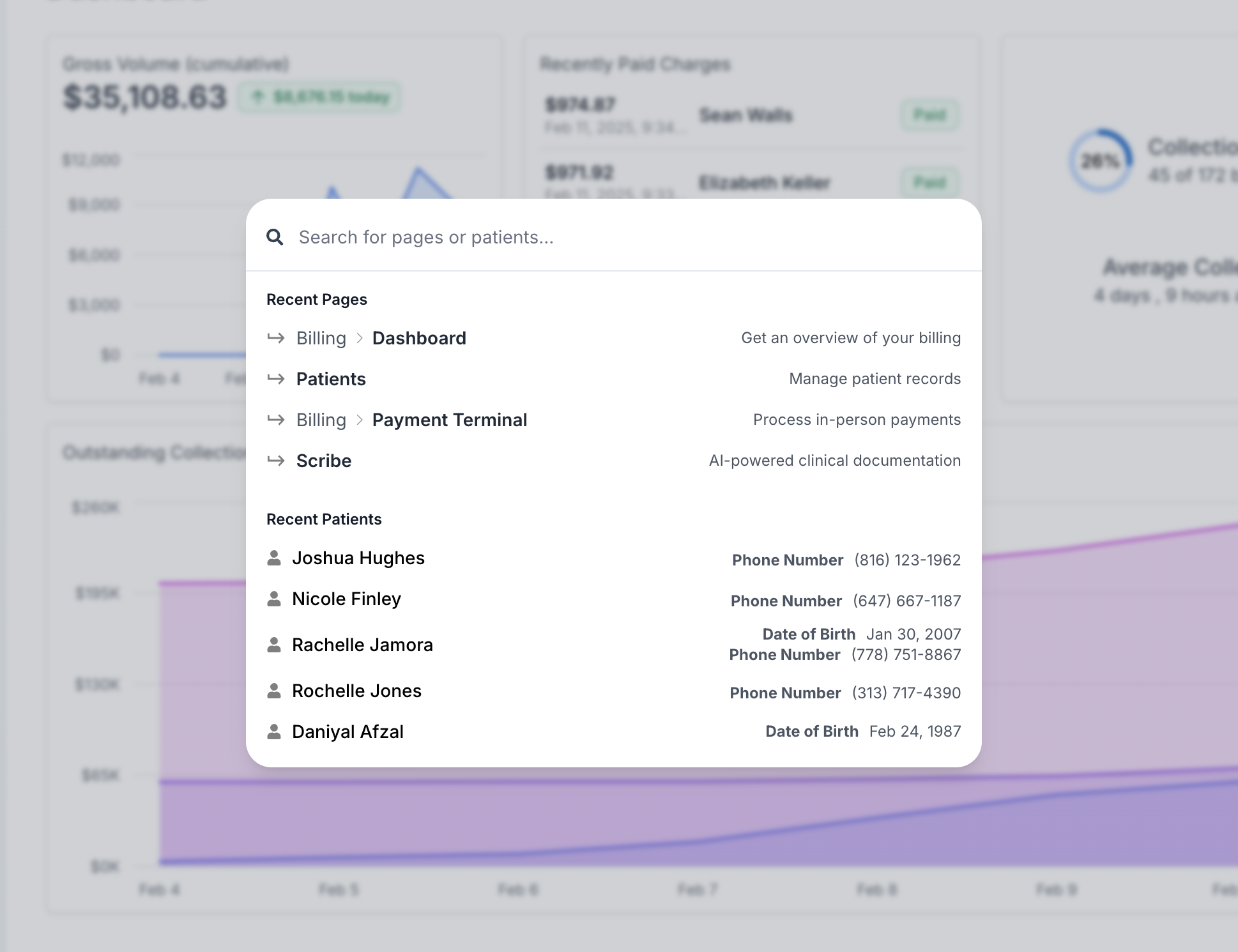
How to Search
To use the search menu effectively, follow these steps:1
Open Search
Press
Cmd + K (Mac) or Ctrl + K (Windows).2
Type Your Query
Start typing a patient name, page title, product, service, or action. As you type, the most relevant results will appear at the top.
3
Select a Result
Use the
Up and Down arrow keys on your keyboard to highlight the correct item.4
Confirm
Press
Enter to go to the selected page or perform the highlighted action.What You Can Search For
The Global Search menu is context-aware and pulls results from across your entire workspace:1. Patients
Search for any patient by typing their name, email, phone number, or ID.- Clicking a patient result takes you directly to their Patient Chart.
- This is significantly faster than going to the Patients list and filtering manually.
2. Pages & Modules
Jump directly to any page or module in the platform by typing its name:- Billing: Go to the Invoices or Checkout dashboards.
- Scheduling: Jump to the Calendar or Self-Scheduling setup.
- Settings: Access Note Templates, User Permissions, or Location settings instantly.
3. Quick Actions
Perform frequent clinical and administrative tasks directly from the search bar:- Create Patient: Instantly open the new patient registration form.
- Send Forms: Select a patient and send them intake or consent forms.
- Create Clinical Note: Start a new AI Scribe or manual note session.
- Create Memo: Add a quick administrative memo to a patient’s record.
- Copy Scheduling Link: Quickly copy your clinic’s public self-scheduling URL to share with patients.
- Copy Page URL: Copy the link to your current view to share with a colleague.
4. System Preferences
Quickly toggle interface settings to match your current workflow:- Appearance: Switch between Dark Mode and Light Mode.
- Show / Hide IDs: Toggle the visibility of internal system IDs (useful for technical support).
- Show / Hide Weekends: Toggle whether Saturday and Sunday appear on your Calendar.
- Show / Hide Messages Box: Toggle the persistent chat bubble in the bottom-right corner.
5. Catalog Items
Search for products, services, memberships, and packages by name. Each result displays:- Item type (Product, Service, Membership, or Package)
- Price
- Stock levels (for physical items, with color-coded warnings for low or out-of-stock)
6. Locations & Facilities
If your organization has multiple facilities, you can search for a location by name or city to quickly switch your active workspace context.Pro Tips for Speed
Use Keyboard Shortcuts
Keep your hands on the keyboard. Press
Cmd + K to open search, type your query, use the Up and Down arrow keys to highlight a result, and press Enter to select it.Recent & Suggested Pages
When you open the search menu (before you start typing), Decoda automatically displays your most recently visited pages and suggested actions based on your role.